Changing links in wordpress website is a common practice to enhance search engine optimization. Moreover some structures of links look more professional than others. For example a link https://yoursite.com/sample-post/ looks more professional and meaningful than a link like https://yoursite.com/p?=123
A link structure https://yoursite.com/your-post-keyword/ world get better search engine ranking position than a link like https://yoursite.com/p?=123 because your link https://yoursite.com/your-post-keyword/ guides the search engine about the content in this post.
There are different kinds of link structures in wordpress and these are mentioned below.
Plain: https://yoursite.com/?p=123
Day and name: https://yoursite.com/2026/02/23/sample-post/
Month and name: https://yoursite.com/2026/02/sample-post/
Numeric: https://yoursite.com/archives/123
Post Name: https://yoursite.com/sample-post/
Custom Structure: https://yoursite.com/index.php/%year%/%monthnum%/%day%/%postname%/
You can choose any of the above structure for your URLs according to your needs and requirements. For example some people would be writing a wordpress blog for their personal use only as an online journal, so they would prefer to add day, month and year in URL for remembrance and reference. While other people would prefer https://yoursite.com/?p=123 to keep URLs short.
How to Change Links in Wordpress?
Step 1: Login to your wordpress admin panel through visiting URL https://yoursite.com/wp-admin/
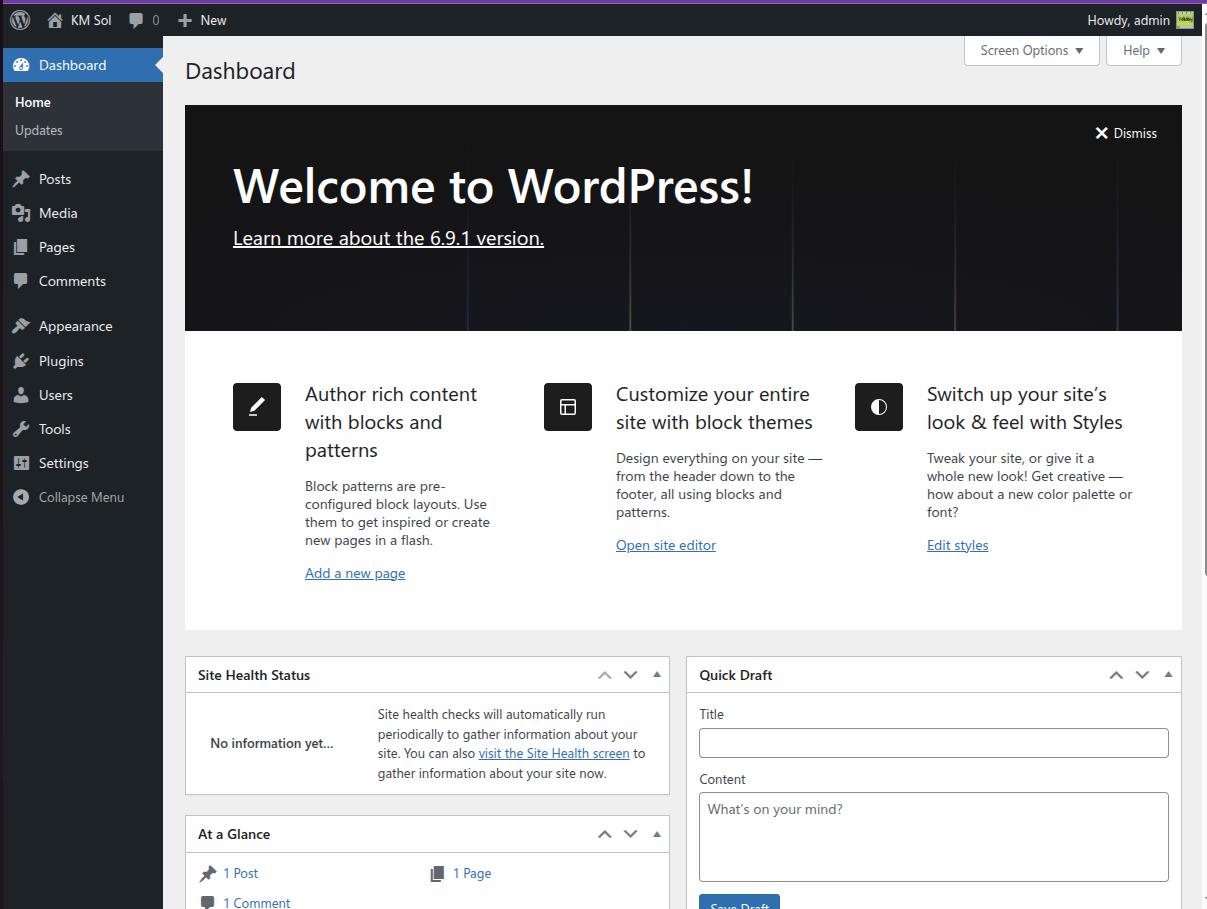
Step 2: Go to settings and then visit "Permalinks" section.
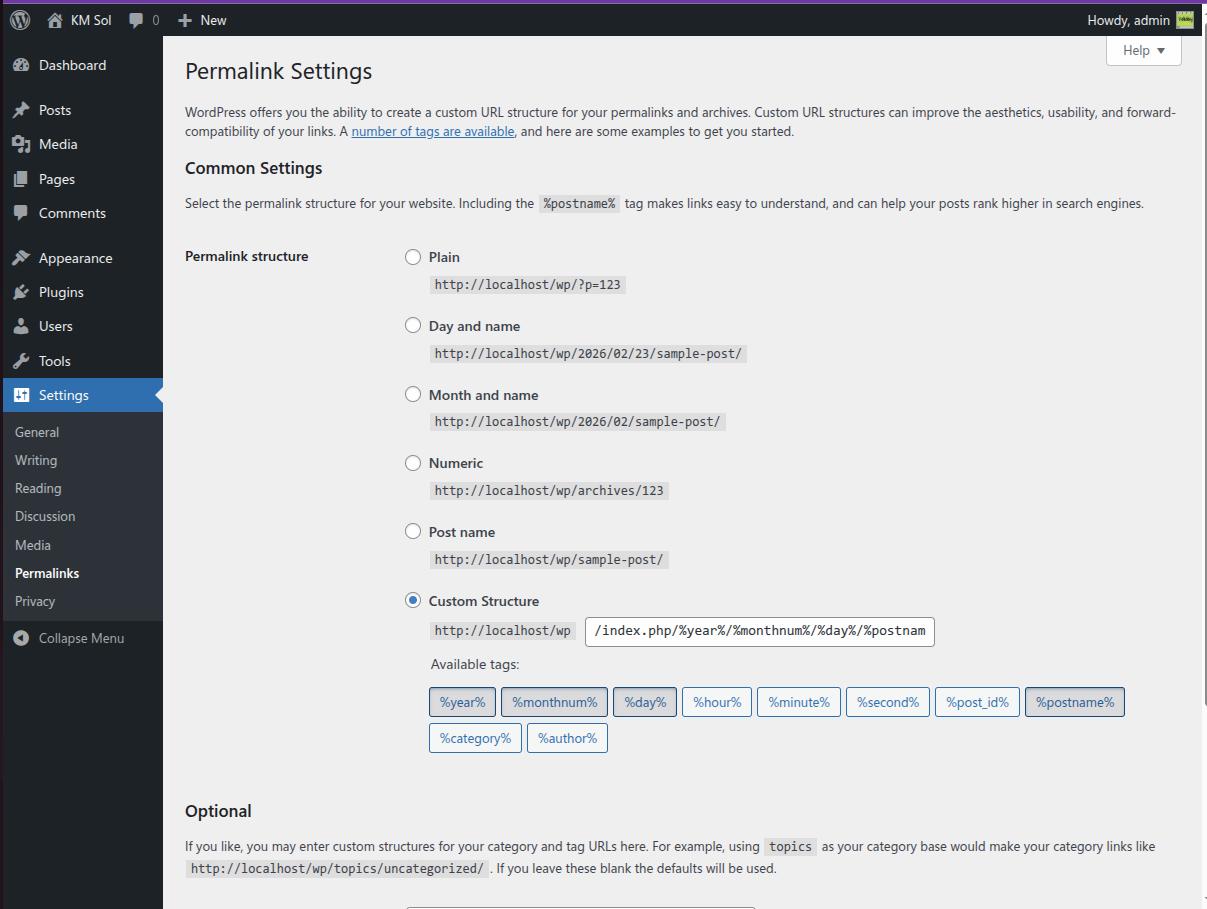
Step 3: Choose your preferred URL structure and hit "Save Changes".
You are all done.